

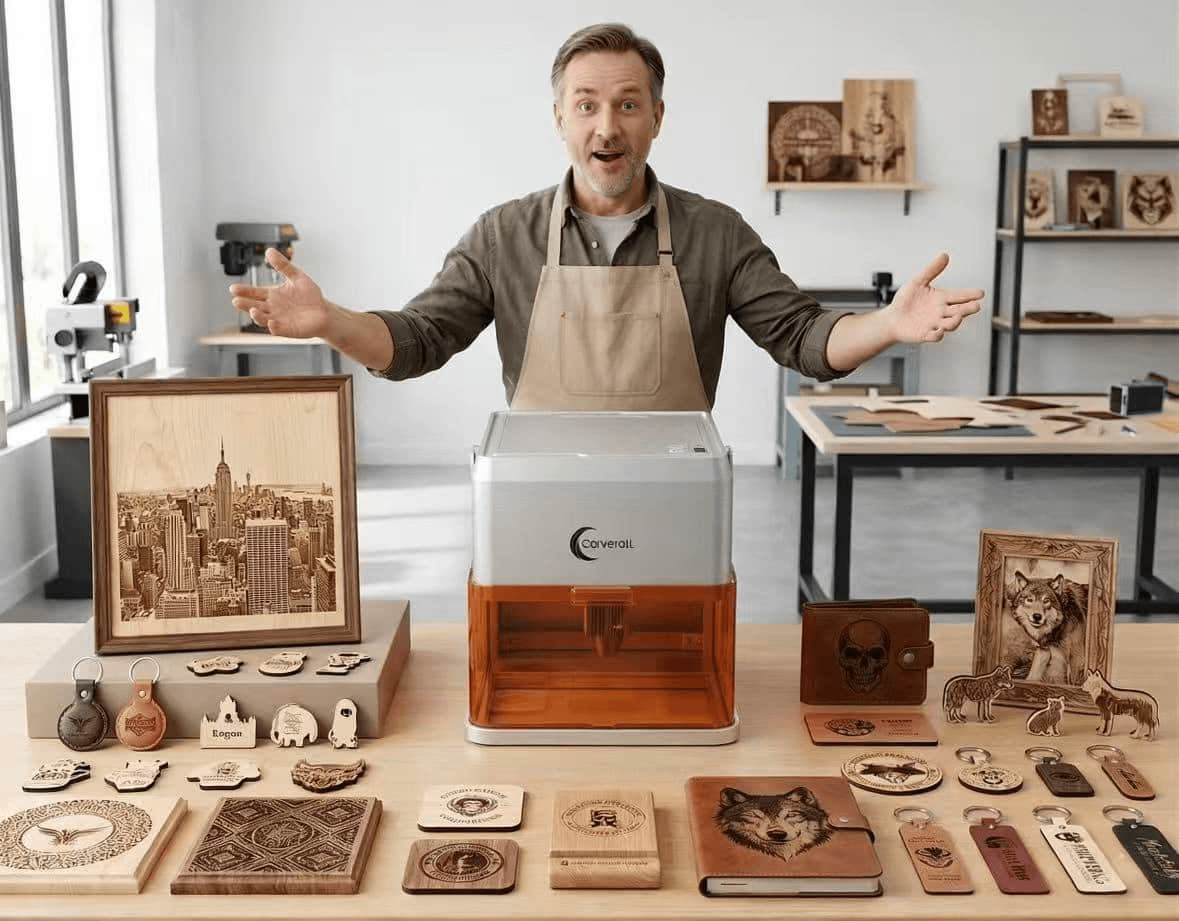
Carverall A1PRO Handbook
Harness the power of the high-definition camera to unlock a seamless, automated batch production workflow.
Crafting Without Boundaries
The Carverall A1PRO is more than just a laser engraver—it is a smart production hub. With its specialized 110x110mm workspace, every millimeter is optimized for crisp detail.

01. Power On & Instant Connectivity
Whether you prefer mobile agility or desktop precision, the A1PRO offers two seamless ways to connect and start creating immediately.
Mobile Wi-Fi Connection
Power on, open the CutLabX app, and connect to the “Carverall A1PRO” Wi-Fi network.

Computer USB Link
Connect via the high-speed data cable to your PC/Mac. Select "USB" in CutLabX Desktop and hit "Connect".

02. Precision Focus: The 3-Height System
A sharp engraving begins with a perfect focal point. The A1PRO’s manual multi-stage stand allows the laser head to sit at the ideal distance for materials of any size.

03. Camera Intelligence: One Click, Total Automation
The A1PRO’s built-in HD camera is the core of its automated workflow. By capturing the entire 110x110mm workspace, it enables a "What You See Is What You Get" environment.
Camera-Based Batch Engraving Workflow
Place multiple items on the base. Click "Refresh Camera" to see them live, then drag your designs onto each piece. Accuracy is guaranteed.
04. Essential Setup: Camera Alignment
To achieve maximum precision, the camera must be calibrated on your computer. This process ensures accurate alignment with minimal deviation.
05. Inspiration Gallery: Masterpieces
From organic wood to sleek metals, the A1PRO series transforms your ideas into tangible art. Explore the possibilities with different materials and the swappable IR module.
 Natural Wood
 Metal (IR Module)
 leather
 Sintered Stone
Want to achieve these results? Before officially engraving the final workpiece, be sure to first conduct parameter tests using scrap material to determine the optimal settings for your specific material, thereby ensuring the most flawless results.


